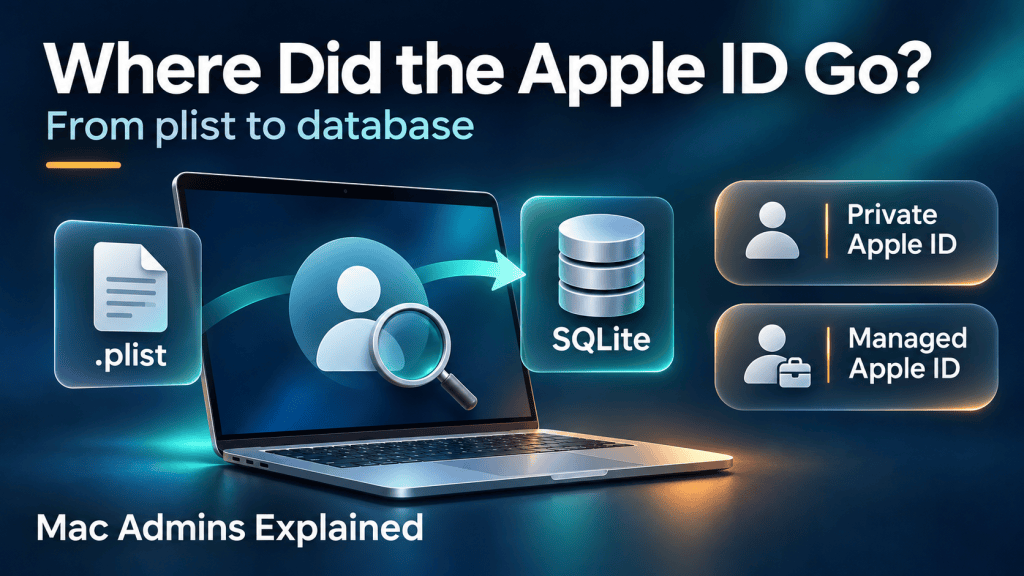
I wanted to find out which Apple ID was signed in on a Mac and get that information into Jamf. Sounds like a simple task, right?
Open System Settings, check the Apple ID, and you have the answer. But when you need to check this across the Macs you manage, you need a script to collect the information for you.
Up to and including macOS 26, I could do this by reading the following plist file:
~/Library/Preferences/MobileMeAccounts.plist
I already had Jamf collecting the Apple ID this way and adding it to the device inventory.
It was working. Then I upgraded to macOS 27.
After the upgrade, the Apple ID field in Jamf was blank. The user was still signed in on the Mac, so why was Jamf no longer showing it?
That is where my troubleshooting started.
How I collected it on macOS 26
A plist is a file macOS uses to store settings and other information. In my macOS 26 setup, this file contained the account information my script needed.
The process was simple: read the file, find the Apple ID, and send the result to Jamf.
The ~ at the beginning means the user’s home folder. For a user named testuser, the full path would be:
/Users/testuser/Library/Preferences/MobileMeAccounts.plist
What changed after the upgrade?
When I checked the Macs running macOS 27, the plist file my script relied on was no longer there.
That explained the blank field. The script was looking in the same place, but the file it expected to read was missing.
A blank result in Jamf did not mean the user had signed out. It meant my existing collection method could no longer find the information.
This was what I observed on the Macs I tested. It does not mean Apple introduced a new account database in macOS 27 or moved every account setting in the same way.
Where did I look next?
I checked the user’s Accounts folder and found this file:
~/Library/Accounts/Accounts4.sqlite
This is a SQLite database. Think of it as a file containing several tables, a little like a workbook containing several sheets. Each table holds a particular set of information.
SQL is the language used to ask the database for specific information. SQLite is the database format used here.
I needed to find which table contained the Apple account details.
How I found the Apple ID in the database
First, I listed the tables using the Mac’s built-in sqlite3 command. Here is an example using a test user’s home folder:
/usr/bin/sqlite3 -readonly "/Users/testuser/Library/Accounts/Accounts4.sqlite" '.tables'
Replace testuser with the user you are checking. The -readonly option opens the database for reading, without changing its contents.
Two tables helped me:
| Table | What I checked |
|---|---|
ZACCOUNT | The saved account records, including usernames. |
ZACCOUNTTYPE | The type of account each record belongs to. |
I checked their structure with:
/usr/bin/sqlite3 -readonly "/Users/testuser/Library/Accounts/Accounts4.sqlite" '.schema ZACCOUNT'/usr/bin/sqlite3 -readonly "/Users/testuser/Library/Accounts/Accounts4.sqlite" '.schema ZACCOUNTTYPE'
The database can contain different accounts. I could not simply take the first email address and assume it was the Apple ID.
During troubleshooting, an initial search for an iCloud account type did not return the record I needed. I then found the relevant account type:
com.apple.account.AppleAccount
I used that value to narrow the search:
/usr/bin/sqlite3 -readonly "/Users/testuser/Library/Accounts/Accounts4.sqlite" "SELECT DISTINCT TRIM(a.ZUSERNAME)FROM ZACCOUNT AS aJOIN ZACCOUNTTYPE AS t ON a.ZACCOUNTTYPE = t.Z_PKWHERE t.ZIDENTIFIER = 'com.apple.account.AppleAccount' AND TRIM(COALESCE(a.ZUSERNAME, '')) != '';"
In simple terms, this asks: show me the username saved against the AppleAccount record.
This time, it returned the Apple ID I was looking for.
This command displays the address locally for troubleshooting. It is not the final result I chose to send to Jamf. A saved record is also not a live check with Apple that the account is currently authenticated.
Then I asked: do I need the actual email address?
I had found a way to read the Apple ID again. But before adding it back to Jamf, I thought about what I needed from the report.
I wanted to know whether the Mac was using a private Apple ID or a managed Apple ID. I did not need the user’s exact email address to answer that question.
So I changed the reporting approach. The script would read the address locally, apply my account classification rules, and send only the category to Jamf:
<result>Private Apple ID</result>
Or:
<result>Managed Apple ID</result>
This gave me the information I needed without storing the personal email address in my inventory. Any logs or saved results should also contain only the category.
How did I decide which type it was?
My reporting rule used the organisation’s confirmed managed-account domain. For this example, imagine that domain is example.com.
If accounts on that domain have been confirmed as managed, the script can classify a matching address as Managed Apple ID. An account outside the approved domains can be classified as Private Apple ID where that matches the environment’s account rules.
There is a limit to this approach: an email domain alone does not prove who manages an Apple Account. A personal account can use a work email address, and another organisation may manage accounts on a different domain. Confirm your domain and account rules before using these labels. If the type is unclear, report Unknown.
| Result of the check | Jamf output |
|---|---|
| Matches the confirmed managed-account rules | Managed Apple ID |
| Matches the confirmed private-account rules | Private Apple ID |
| The query succeeds but finds no matching record | No Apple ID found |
| The database cannot be read, the query fails, or the type is unclear | Unknown |
Keep these outcomes separate. A permission error does not mean there is no Apple ID, and no matching record does not prove the user is signed out of every Apple service.
A few things to check before using this in Jamf
Jamf runs Extension Attribute scripts as root. Make sure the script checks the logged-in user’s home folder, rather than root’s home folder. This method checks that user’s saved account information, not every user on the Mac.
Also test access through Jamf itself. macOS privacy permissions can affect whether a process can read the database. A command working in Terminal does not guarantee it will work through Jamf.
Finally, this is an internal macOS database, so its tables and fields may change. Test the lookup again when you validate a new macOS version.
What this troubleshooting taught me
I started with a blank Apple ID field after an upgrade. Checking the original file explained why my script had stopped working. Looking inside the account database helped me find the information again.
Finding the address also gave me a chance to rethink the report. For this report, knowing the account type was enough. That is what I chose to collect.


Leave a Reply